
UI Usage
The Dive Telemetry application provides a web-based user interface for converting dive computer exports into telemetry overlay CSV format.
Overview
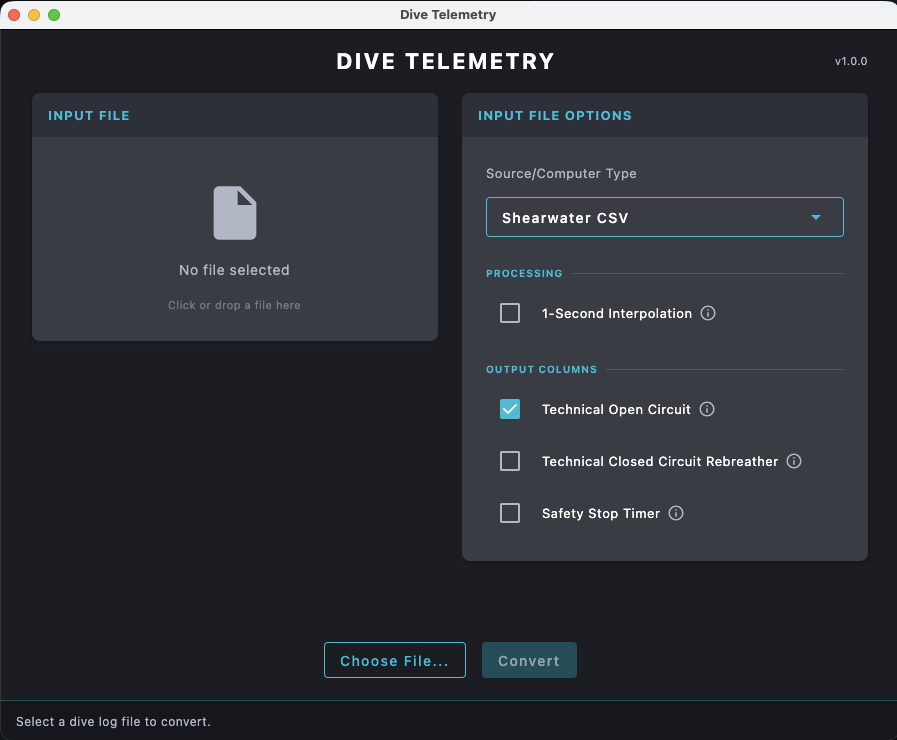
The UI offers a user-friendly interface that allows you to:
- Select your dive computer format
- Select the dive log file
- Configure conversion options
- Open the resulting telemetry CSV
Getting Started
- Select Format: Choose your dive computer brand from the available options (Shearwater, Garmin, etc.)
- Select File: Select your dive log file (CSV, FIT, ZXY format)
- Configure Options: Choose any additional settings you need
- Convert: Click the convert button to process your dive log
- Open: Use the
OPENbutton to find the generated telemetry CSV in your computer
Supported Options
The UI provides access to the same conversion options as the CLI:
| Option | Description |
|---|---|
| Interpolation | Resample data to 1-second intervals for smoother video overlay |
| Technical OC | Include Technical Open Circuit columns (NDL, deco, clear) |
| Technical CCR | Include Technical CCR columns (PPO2, dilPO2) |
| Safety Stop | Enable Safety Stop Timer column |
| Pressure Unit | Choose tank pressure unit: default, PSI, or bar |
Troubleshooting
If you encounter issues with the UI:
- Ensure your dive log file is in the correct format for your dive computer
- Check that your file isn't corrupted
- Try the CLI version if the UI has any compatibility issues
- Refer to the CLI Usage documentation for more details